Search EML Files: How to Search Within EML Files Without Opening Each Email
By implementing the right search method, you can locate critical emails faster and manage and search content EML data more effectively.
 techinmay
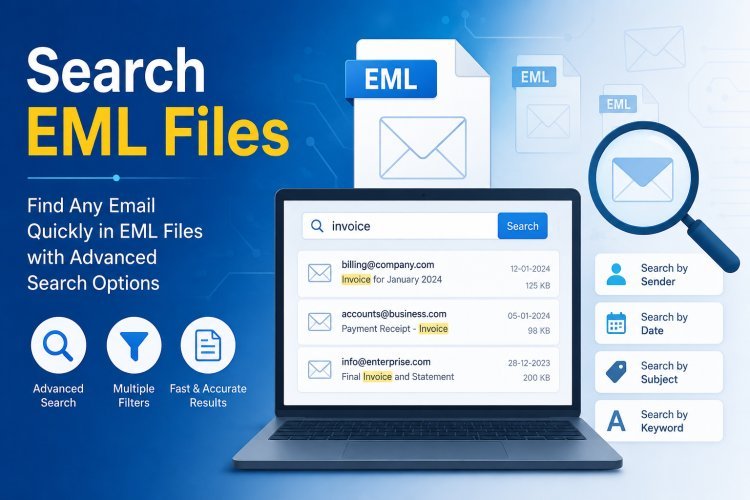
Have you ever needed to find a single email buried inside hundreds of EML files, but had no easy way to search through them? Whether it's a legal case, an internal audit, a customer complaint trail, or years of archived correspondence, manually opening each EML file one by one to look for a name, date, or keyword is slow and frustrating. This is where the ability to search EML files becomes essential.
Many users look for ways to search EML files without opening each email individually, especially when dealing with large folders of exported mailbox data. Since EML is a widely used format for storing individual email messages, having the right viewer with built-in search functionality makes a significant difference in how quickly information can be located.
Best Way to Search EML Files Without Opening Each Email
If you have a large collection of EML files and need to locate specific emails, attachments, or content quickly, using a dedicated EML viewer is usually the most practical solution. Among the available options, SysTools EML Viewer Tool is considered one of the reliable tools for browsing, searching, and reviewing EML files without relying on a full email client.
The software is designed to load EML files in bulk and allow users to search across subjects, senders, recipients, and even message body content. This makes it useful when users need to find specific emails quickly without scrolling through folders or opening files one at a time.
What Is an EML Viewer with Search Capability?
An EML viewer with search capability is a utility that helps users open, preview, and search through EML files without needing Outlook, Thunderbird, or any other dedicated email client installed. Instead of opening each file individually, it allows users to apply search filters and instantly locate relevant emails.
People often look for ways to search EML files when they:
- Need to locate emails from a specific sender or date range.
- Are reviewing exported mailbox data for an investigation or audit.
- Have inherited old EML archives without proper folder organization.
- Need to find emails containing specific keywords or attachments.
- Want to verify email content before converting or sharing files.
When Do You Need to Search EML Files?
There are many situations where users need to search inside EML files instead of opening them one by one:
Legal and Compliance Reviews: Investigators often need to locate specific correspondence across thousands of EML files.
Old Email Backups: Users frequently discover EML exports but have no easy way to browse them without an email client.
Employee Transition: Organizations sometimes inherit EML archives after staff changes and need to find relevant communication quickly.
Customer Support Records: Support teams may need to trace conversation history stored as EML files.
Project Documentation: Teams working with archived project emails need fast access to specific messages.
An effective EML viewer with search functionality can help locate the right email without manually checking every file.
Advanced Search Inside EML Files
Searching EML files goes beyond just looking at file names. SysTools EML Viewer allows users to perform advanced searches inside the actual content of EML files, including:
Subject Line Search: Quickly locate emails based on subject keywords.
Sender and Recipient Search: Filter emails by specific email addresses or names.
Date Range Search: Narrow down results to a particular time period.
Body Content Search: Search within the actual message text, not just headers.
Attachment-Based Search: Identify emails that contain specific attached files.
This advanced search functionality eliminates the need to open each EML file manually, saving significant time when dealing with large volumes of data.
Which Search and Conversion Features Are Available?
Not every requirement is the same, and the right approach depends on whether you simply need to search EML files or also need to convert them into another format afterward.
Free Search Functionality
For users who only need to browse and search through EML files, the basic version allows searching by subject, sender, recipient, and date without any conversion requirement.
Pro Edition - Search and Convert EML to PDF
The Pro edition extends this functionality by allowing users to search EML files and convert selected or filtered results directly into PDF format. This is useful when search results need to be shared, archived, or printed in a standard document format.
Pro+ Edition - Search and Convert to 5+ File Formats
For users with broader requirements, the Pro+ edition supports searching EML files and converting them into five or more file formats, including PDF and other commonly used formats. This is helpful for teams that need flexibility in how recovered or located emails are stored and shared afterward.
Therefore, before choosing a plan, it is important to identify whether your requirement is limited to searching, or whether converting search results into another format is also necessary.
Manual Techniques Available for Browsing EML Files
For users dealing with only a few EML files, several manual approaches are available. These methods generally work only with small volumes and limited search needs.
- Opening Files Individually in a Text Editor
- Using Default Mail Client Import
- Renaming and Sorting Files Manually
- Using Windows File Explorer Preview
- Searching File Names Only via Search Bar
These approaches are commonly used for small batches of EML files. However, they are not effective when dealing with hundreds or thousands of files that require content-level searching.
Why Searching Large EML Collections Manually Is Difficult?
As the number of EML files increases, manually opening and reviewing each one becomes impractical. This is especially true when:
- Files are spread across multiple folders.
- File names do not indicate the email content.
- Emails need to be searched by body text, not just subject.
- Multiple criteria, such as sender and date, need to be applied together.
- Time constraints require fast access to specific information.
Because of this, many professionals prefer using a dedicated EML viewer that supports advanced search functionality.
Features to Look for in an EML Viewer
Before selecting software to search EML files, consider the following:
- Bulk File Loading: The ability to load multiple EML files or entire folders at once.
- Multiple Search Filters: Search by subject, sender, recipient, date, and body content.
- Attachment Preview: View attachments without opening a separate application.
- Original Formatting Preservation: The software should display emails exactly as they were sent.
- User-Friendly Interface: A simple interface helps users search and review emails quickly.
- Conversion Options: The ability to export search results into formats like PDF when required.
Which Software Is Best for Searching EML Files in Bulk?
When dealing with a large number of EML files, dedicated viewer software is usually recommended. Such tools are specifically developed to search EML files in bulk while preserving original formatting and content.
A reliable EML viewer offers:
- Support for searching across subject, sender, recipient, and body content.
- Bulk loading of EML files from folders.
- Attachment viewing without external applications.
- Optional conversion to PDF or other formats based on edition.
- Safe and non-destructive processing of original files.
Final Thoughts
Manually opening each EML file to find a specific email is time-consuming and impractical once the file count grows. Understanding your search and conversion requirements is the first step toward choosing the right solution.
Manual techniques such as renaming files, using file explorer preview, or opening files individually in a text editor can work for very small batches. However, when dealing with large EML collections, using a dedicated EML viewer with advanced search functionality is generally the most effective option to search EML files quickly and accurately, with the added flexibility to convert results into PDF or other formats as needed.